The product page
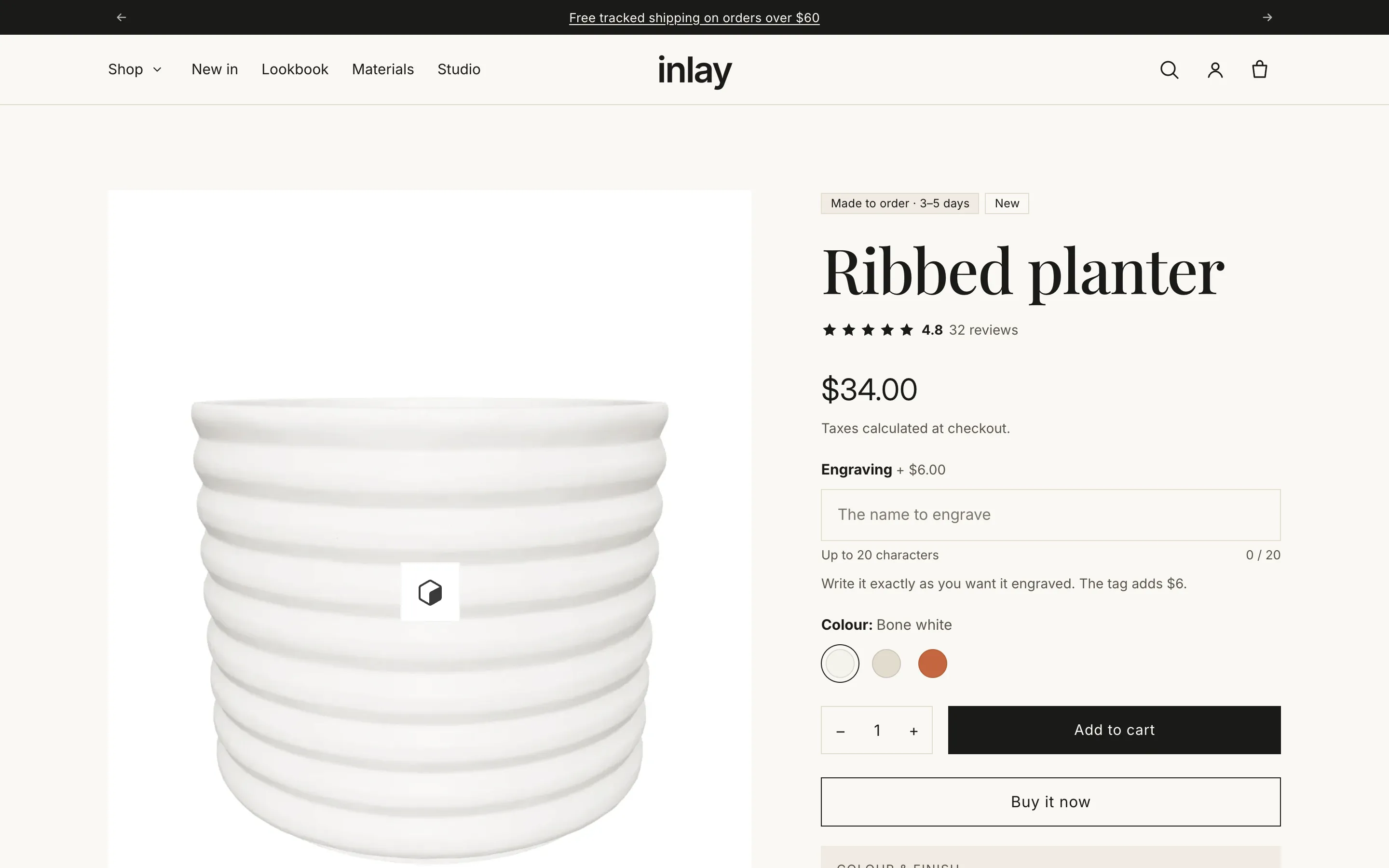
The product template is built from blocks, in the order you choose. Seventeen blocks ship with the theme, plus the Separator block and any app blocks you add. Open a product in the theme editor and you are editing the template for every product that uses it — with the important exception that values connected to a metafield are per product.
You can also create a second product template (Online Store → Themes → … → Edit code is not needed: use Add template on the Templates tab in the editor’s page selector) and assign it to some products — for example one template with engraving for personalised pieces and one without.
The template also ships with a Product recommendations section under the product — remove it, or switch it to Complementary, from the editor. The cart page ships with one too.
Section settings
Section titled “Section settings”Layout
Section titled “Layout”| Setting | Notes |
|---|---|
| Media width on desktop | Small / Medium / Large. |
| Keep product info in view on scroll | Desktop only. The info column stays in view while the gallery scrolls past. Worth turning off if your info column is longer than the gallery. |
| Spacing between blocks | 0–48 px. Add a Separator block where one gap should differ. |
Media gallery
Section titled “Media gallery”
| Setting | Notes |
|---|---|
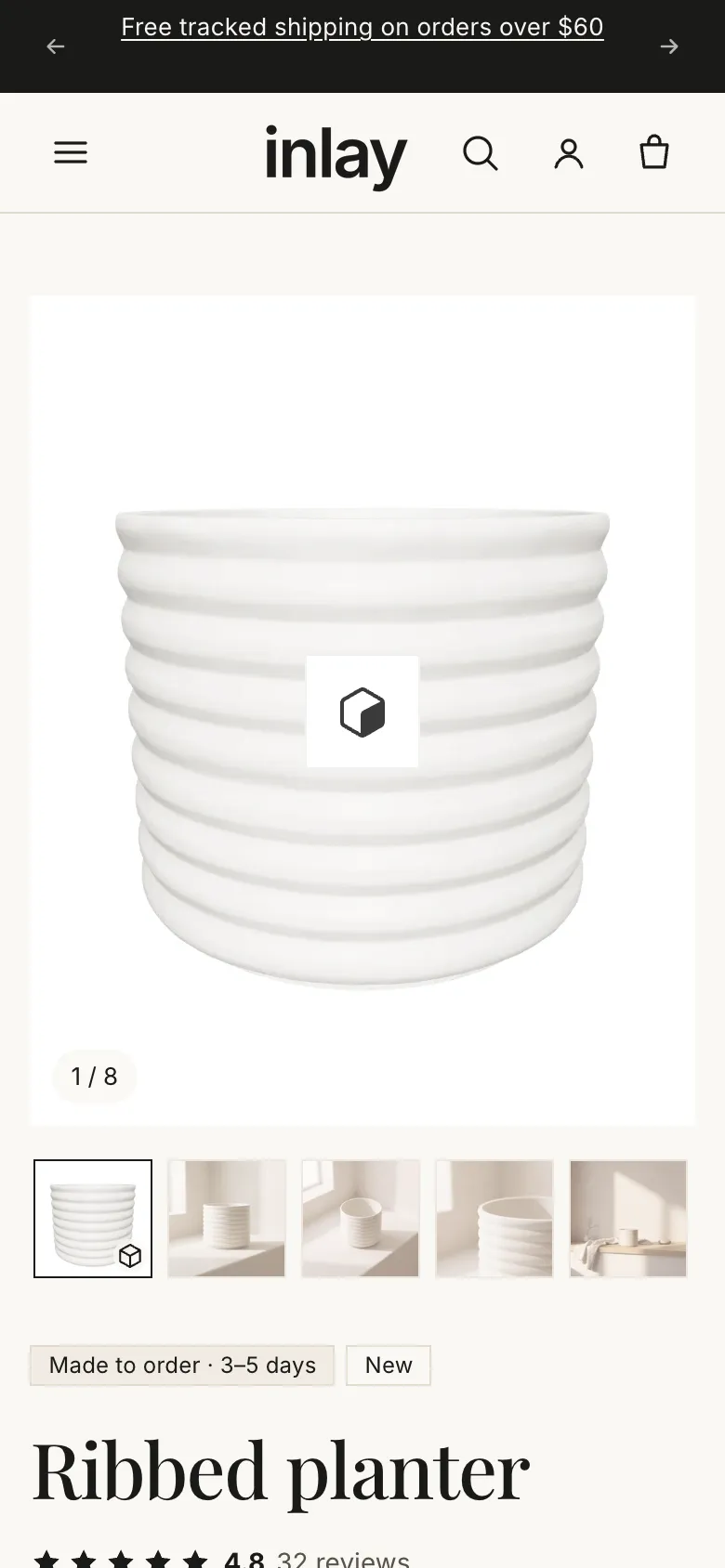
| Show “View in your space” (AR) button | For products with a 3D model. Appears only on phones that support augmented reality. |
| Start on the 3D model | When the product has a 3D model, show it first so customers can rotate it. |
| Transition | Slide or Fade. |
| Media frame | Adapt to first media (uses the first media’s shape for every slide), Square, Portrait 4:5, Landscape 4:3. |
| Image fit | Fill frame (crop) or Show whole image. Use Show whole image if your products are shot at different proportions. |
| Desktop gallery layout | Carousel with thumbnails, Grid (first image large), or One column. Phones always show a swipeable carousel. |
Clicking an image opens a full-screen zoom with its own thumbnails and arrows. Videos and 3D models sit in the gallery alongside the photographs.
Sticky add to cart
Section titled “Sticky add to cart”Show sticky add to cart bar puts a bar at the bottom of the screen once the main button scrolls out of view, with its own Bar color scheme. On a long product page — and Inlay’s product pages are long by design — this is usually the difference between a page that converts and one that reads nicely.
The blocks
Section titled “The blocks”
Size: Small / Medium / Large. One per page.
Rating
Section titled “Rating”Stars and the review count, read from the standard reviews metafields (reviews.rating and
reviews.rating_count) that every reviews app fills in — so the rating sits where you put the
block, in the theme’s own style, without the app’s widget. Products without a rating show
nothing. The same numbers feed the stars on product cards (Theme settings → Product cards →
Show rating) and the AggregateRating in the page’s structured data.
- Show review count — “23 reviews” after the number.
Show tax and shipping note. Unit prices, sale prices and “Sold out” are handled automatically. Shop Pay Installments appear with the buy buttons, not here.
Badges
Section titled “Badges”No settings — it draws the badges you set up in Theme settings → Product cards → Badges: sale, sold out, New (by tag) and Made to order.
A short line of your own. Text and Style: Body, Muted or Uppercase label. Several allowed, so this is the block for a one-line promise above the price.
Variant picker & buy buttons
Section titled “Variant picker & buy buttons”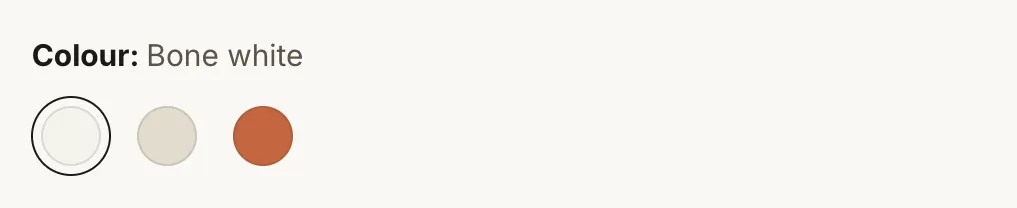
The core of the page: options, quantity, add to cart.
| Setting | Notes |
|---|---|
| Show quantity selector | |
| Show dynamic checkout buttons | Shows the customer’s preferred payment method, like Shop Pay or Apple Pay, for a faster checkout. |
| Add to cart button style | Primary or Secondary. The “Buy it now” button takes the other style. |
| Show Shop Pay Installments message | Appears when Shop Pay Installments is available for the store. |
| Show gift card recipient form | Gift card products only: lets customers send the card to someone on a chosen date. |
Options whose values have swatches — or an option named Color — are drawn as swatches, in the shape set in Theme settings → Product cards. Unavailable combinations are shown as unavailable rather than hidden, so a customer can see that the size exists in another colour.
Custom option
Section titled “Custom option”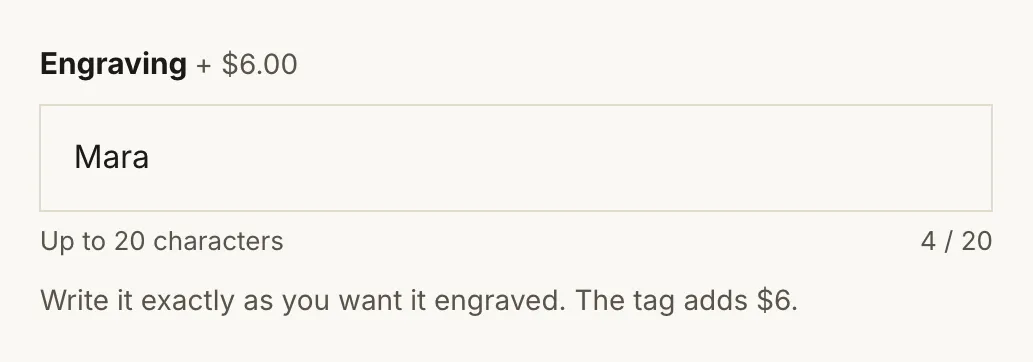
A choice that is not a variant — a finish, an engraving, a gift note. It is added to the order as a line item property; to charge for it, pick an Add-on product.
| Setting | Notes |
|---|---|
| Label | Also the name of the property on the order. |
| Style | Buttons, Dropdown, Text field, Multi-line text field. |
| Values | Buttons and dropdown: comma separated. The first one is preselected. |
| Placeholder, Help text | |
| Maximum characters | Text fields. 0 = no limit. |
| Maximum lines | Multi-line field. 0 = no limit; extra lines are removed as they are typed. |
| Allowed characters | Text fields: Anything, Letters and numbers, or Letters, numbers and . , ’ & -. |
| Required | Text fields. Add to cart is blocked until it is filled in. |
| Add-on product, Only when filled in | A second product charged for the option, added and removed with this one. |
| Photo for value 1 … 6 | Buttons and dropdown: a real photo per value, shown under the option while it is picked. |
Full chapter, with the recommended setup for engraved products: Personalization options.
Several Custom option blocks are allowed. Each one becomes its own line on the order, and the values appear in the cart, the order confirmation and the packing slip.
Size guide
Section titled “Size guide”A small “Size guide” button beside the option it explains (Option it explains, e.g. Size), or under the options on products without that option, opening a side panel. Three parts, in this order, each optional — with none of them filled in the button stays hidden:
- Per-product metafield — the product metafield (
namespace.key, by defaultcustom.size_guide, rich text or plain text) with that product’s own measurements. Create the definition in Settings → Custom data → Products, fill it in per product, and the panel shows it first; products without a value skip this part. - Text — rich text shown on every product, after the per-product part.
- Page — your store-wide guide.
- Show ring size conversion table — the table built into the theme: inside diameter and circumference in millimetres with the EU, US and UK sizes that correspond to them. Table heading names it.
Button label and Panel heading are yours to word.
Measurement table — for clothing and anything sold by size, the same panel can hold a table:
| Setting | Notes |
|---|---|
| Per-product table metafield | A multi-line text metafield (namespace.key, default custom.size_table) with that product’s own table. Replaces the table below on products that have one. |
| Table | One line per size: the size first, then its measurements, separated by commas (or ` |
| Table heading | Default “Measurements”. |
| Numbers are in | Centimetres, Inches or Millimetres — the unit the table is written in. |
| Show cm / in switch | Lets the customer flip the numbers to the other unit; text such as “One size” stays as it is. The choice is remembered across products. |
| Note | A line under the table. |
| How to measure image | A drawing of where each measurement is taken, shown under the table. |
The row of the size the customer has selected is highlighted, and follows the variant picker.
How a piece runs, for products sold by size: a marker on a scale from “runs small” to “runs large”, with an optional note.
| Setting | Notes |
|---|---|
| Heading | Default “Fit”. |
| Scale metafield | Product metafield (namespace.key) with a number from 1 (runs small) to 5 (runs large); 3 is true to size. Decimals place the marker in between. |
| Fixed scale | For products without a metafield value. 0 = no scale. |
| Low end label, Middle label, High end label | Default “Runs small”, “True to size”, “Runs large”. |
| Note metafield | Product metafield with a short line, such as the model’s height and the size they wear. |
| Fixed note | For products without a metafield value. |
Volume pricing
Section titled “Volume pricing”| Setting | Notes |
|---|---|
| Heading | Default “Buy more, save more”. |
| Tiers | One per line: minimum quantity, then percent off — 5: 10 means 10% off from 5 items. |
| Note | Default “Discount applied automatically at checkout.” |
Important: this block displays the tiers. Create a matching automatic discount in Discounts so checkout actually applies it. Quantity price breaks from a B2B catalogue replace these automatically, so a B2B store does not need the tiers filled in.
Production status
Section titled “Production status”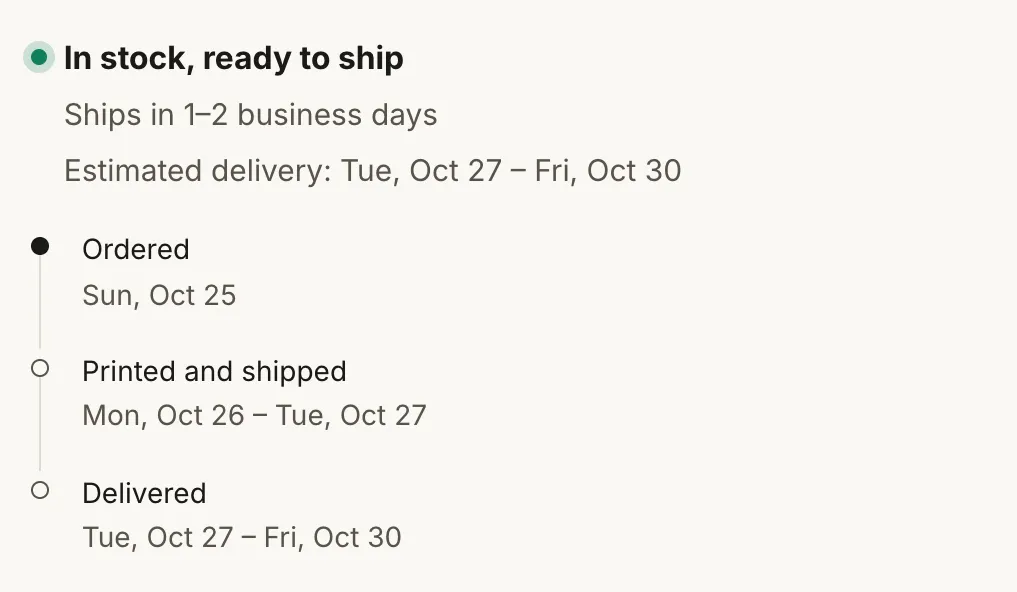
Whether the selected variant is ready to ship or made to order, when it ships, and the timeline. Full chapter: Made to order.
Two more states come from metafields named in Theme settings (Production for the release date, Product cards → Badges for the edition):
- Pre-order — while the product’s release date (
custom.release_date) is still ahead, the block shows the Pre-order label, the day it ships, and a timeline counted from that day; product cards show “Pre-order · ships 12 Dec”. On the release day the stock takes over again. - Editions — Show the edition adds “Edition of 12”, “3 of 12” or “One of a kind” from
custom.edition_size/custom.edition_number; the same words appear as a badge on cards.
Material card and Material
Section titled “Material card and Material”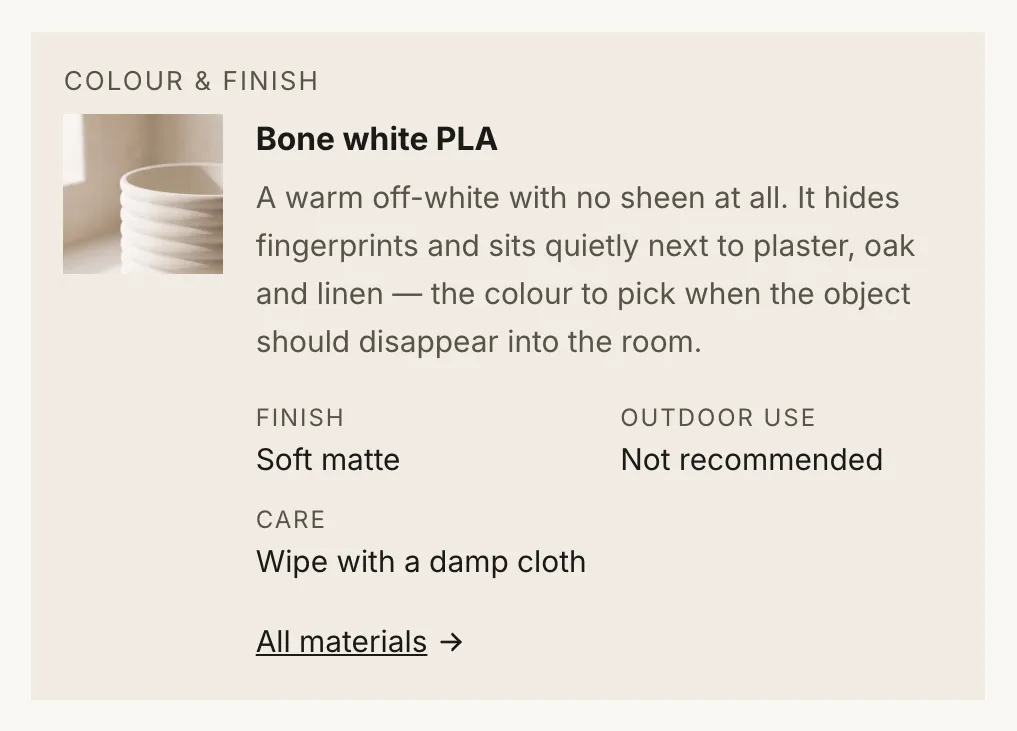
The material or finish the customer has selected: photograph, description and key facts. Full chapter: Material guide.
| Setting | Notes |
|---|---|
| Heading | Default “Material”. |
| Show care | The material’s Care text under its facts. Or keep the card short and let a Collapsible row show it, with Start with the material’s care. |
| Link label, Link | For example a page comparing all your materials. |
Spec sheet
Section titled “Spec sheet”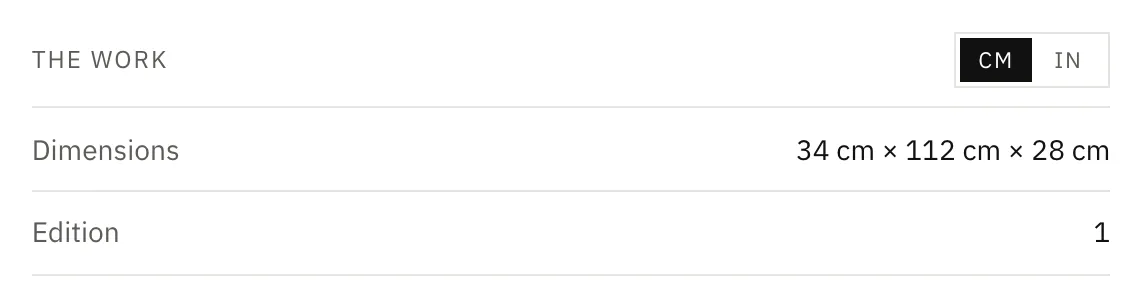
Six rows of label and value: Row 1 label, Row 1 metafield (the product metafield it reads,
namespace.key; several keys separated by commas are joined with ×) and Row 1 value (fixed
text, for products without a value in the metafield), and the same for rows 2 to 6. Full chapter:
Spec sheet.
Size reference
Section titled “Size reference”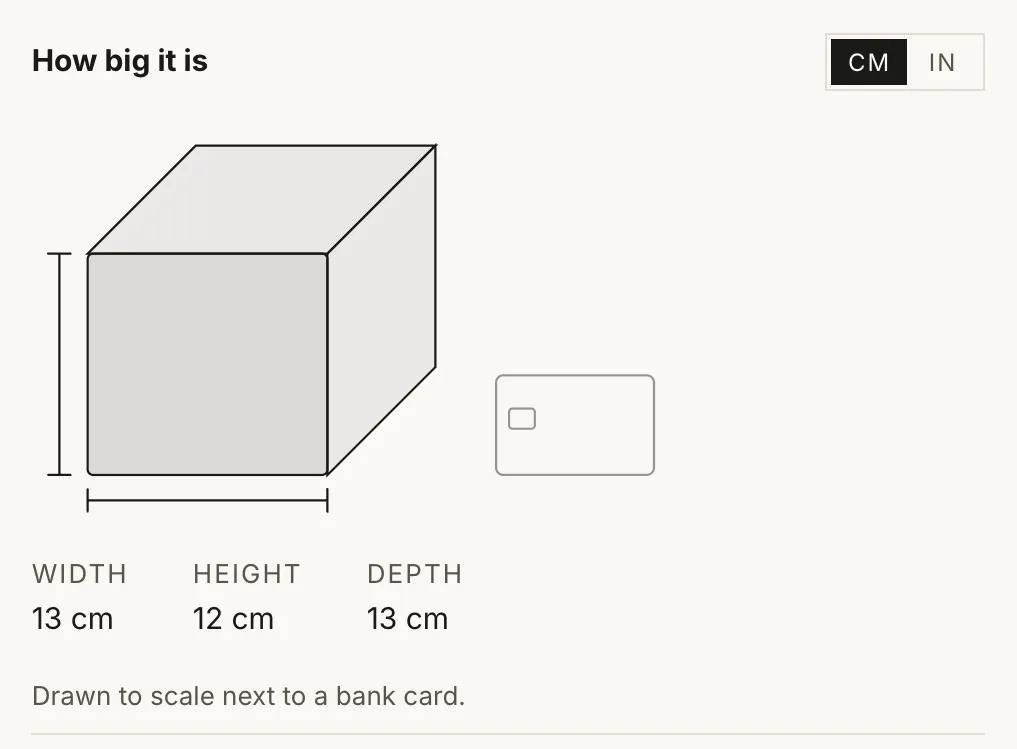
A scale drawing of the product beside something everyone owns. Full chapter: Size reference.
Pickup availability
Section titled “Pickup availability”No settings. Shows where the selected variant can be picked up, and reloads when the variant changes. It appears only when local pickup is set up for a location in Settings → Shipping and delivery; otherwise the block takes no space at all.
Description
Section titled “Description”The product description from the admin. No settings — style it in the admin’s rich-text editor.
Collapsible row
Section titled “Collapsible row”
Heading, Content, Content from a page (shown after the text), Start with the material’s care (the Care text of the selected variant’s material, from the Material blocks, before your own content), Open by default. Several allowed: materials and care, shipping and returns, how it is made.
Content from a page is the one to use for text that is the same on every product — write it once as a page, point every product template at it.
Guarantees
Section titled “Guarantees”Three short promises with an icon each, under the buy buttons: Layout (One per line or Side by side), Icon 1 / Text 1, Icon 2 / Text 2, Icon 3 / Text 3. The texts take a link. Defaults: “Made in our own studio”, “30-day returns, personalized pieces excepted”, “Secure checkout”.
No settings. Copies the product’s URL, and uses the device’s native share sheet where there is one.
Separator
Section titled “Separator”A Line with space above and below, or Space only with an exact height. The way to group blocks into visual sets without changing Spacing between blocks for the whole page.
Custom Liquid
Section titled “Custom Liquid”Liquid code. For app snippets or code of your own.
App blocks
Section titled “App blocks”Apps that offer a product-page block appear in the block list. They are placed and reordered like any other block.
A suggested order
Section titled “A suggested order”What the three presets do, and why:
Inlay — Badges, Title, Price, Variant picker & buy buttons, Custom option (engraving, with a paid add-on), Production status, Size reference, Material card, Description, Collapsible rows, Share.
Halo — Badges, Title, Price, Custom option (engraving, with example photos of the lettering), Variant picker & buy buttons, Production status, Material card, Size reference (next to a coin), Description, Collapsible rows for ring sizing, care and shipping, Share. The engraving field comes before the buy button because in jewellery the words are the purchase.
Plinth — Badges, Title, Price, Spec sheet (material, dimensions, weight, year, edition — read like a wall label), Variant picker & buy buttons, Production status, Size reference (next to a hand), Material card, Description, Collapsible rows for provenance, care and crating. The gallery starts on the 3D model, and there is no quantity selector: most works exist once.
The principle: whatever question your customers ask most goes above the add-to-cart button. Everything else goes below it.
© 2026 Bevel · Shopify is a trademark of Shopify Inc.; Bevel is an independent theme studio.