Personalization options
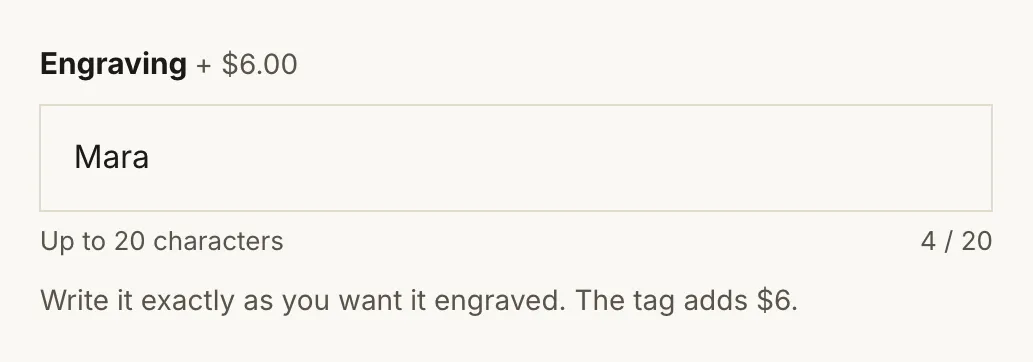
An engraving, a name, a gift message, a finish that is not a variant: the Custom option block on the product page collects it, checks it before the item goes in the cart, and passes it to the order as an ordinary Shopify line item property — visible in the cart, in the admin order, in the confirmation email and on the packing slip, with nothing else installed.
Setting it up
Section titled “Setting it up”- On the product page in the theme editor, Add block → Custom option.
- Set Label — the field’s label, and the name of the property on the order. “Engraving”, “Name”, “Gift message”, “Finish”.
- Pick a Style: Buttons or Dropdown for a list of values, Text field for one line, Multi-line text field for a message.
- For text, set Maximum characters to what you can actually engrave, and Allowed characters to what your process can cut.
- Write a Help text in your own words: where the text goes, how it is made, whether a personalised piece can be returned.
Several Custom option blocks are allowed on one template; each becomes its own line on the order.
Settings
Section titled “Settings”The field
Section titled “The field”| Setting | Notes |
|---|---|
| Label | Also the name of the property on the order. |
| Style | Buttons, Dropdown, Text field or Multi-line text field. |
| Values | Buttons and dropdown: comma separated. The first one is preselected. |
| Placeholder | Text styles: grey example text inside the empty field. |
| Maximum characters | Text styles. 0 = no limit. Shown as a quiet “4 / 20” counter and read once by screen readers when the field is focused. |
| Maximum lines | Multi-line field. 0 = no limit. Extra lines are removed as they are typed, so what the customer sees is what reaches the order. |
| Allowed characters | Text styles: Anything, Letters and numbers, or Letters, numbers and . , ’ & -. Anything else shows an error under the field and stops the item from being added to the cart. |
| Required | Text styles. Add to cart is blocked until the field is filled in. |
| Help text | A line under the field. |
Paid add-on
Section titled “Paid add-on”Shopify cannot charge for a line item property, so a price comes from a second product — “Hand engraving”, $15 — added to the cart together with this one, in the same quantity, and removed with it. Keep that product out of your collections and in stock.
| Setting | Notes |
|---|---|
| Add-on product | The product whose price is charged. Its price is shown next to the label (“Engraving + $15.00”). |
| Only when filled in | On by default. Text styles: the add-on is charged only when the customer typed something. Buttons and dropdown: only when they pick a value other than the first one — so name the first value “None”. |
Example photos
Section titled “Example photos”
For Buttons and Dropdown: a real photo of each value — the lettering, the finish, the colour as you make it — in the order of Values (Photo for value 1 is the first value, and so on up to six). The photo of the picked value shows under the option; values without a photo show none. Only the photo on screen is downloaded, and switching needs no script.
What reaches the order
Section titled “What reaches the order”The text, or the chosen value, arrives as a line item property named by your Label:
Engraving: Mara
Nothing is drawn on the product photograph. If you want customers to see what an engraved piece looks like, show them one: photograph a real engraved piece for the product’s gallery, and use Example photos for the lettering styles or finishes you offer.
Recommended setup for engraved products
Section titled “Recommended setup for engraved products”- A product template of its own — Engraving, say — so the Custom option block, its add-on and its help text are set up once and assigned to every engravable product (Online Store → Themes → Customize → the product page selector → Add template).
- Photographs of engraved pieces in the gallery, including one close enough to read.
- A short limit (16–20 characters) and a strict Allowed characters setting save emails: the field does the arguing before the order exists.
- Help text in your words: “Engraved by hand on the inside of the band, centred. Engraved pieces cannot be returned.”
- Use Required for a product that makes no sense unpersonalised; leave it off for an optional gift note.
- A finish that changes the price is better as an Add-on product than as a variant when it applies to many products — one add-on, one price to maintain.
- The counter and the error messages use the theme’s language files, so they translate with the rest of the store.
© 2026 Bevel · Shopify is a trademark of Shopify Inc.; Bevel is an independent theme studio.