Collection, search and blog
Collection pages
Section titled “Collection pages”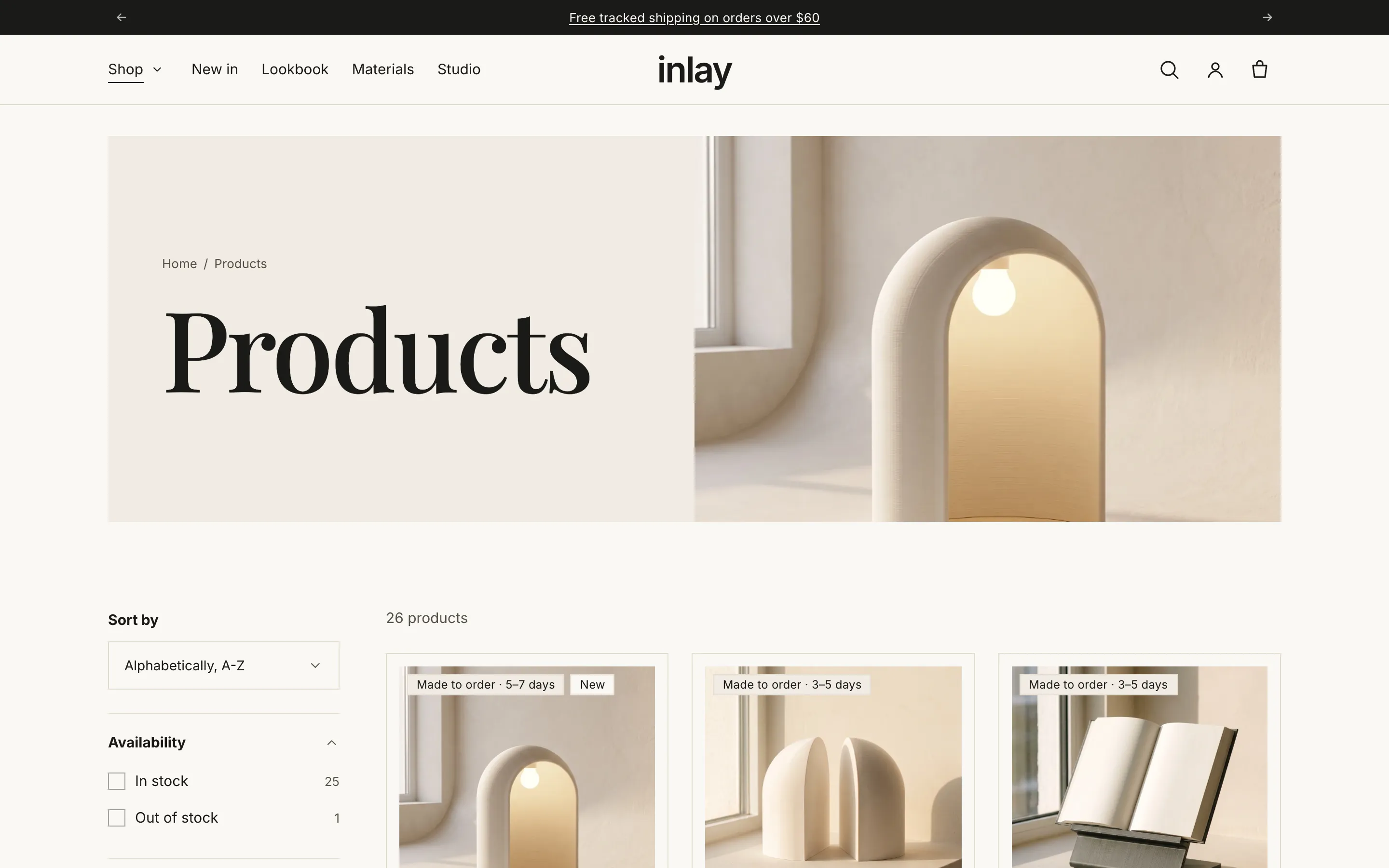
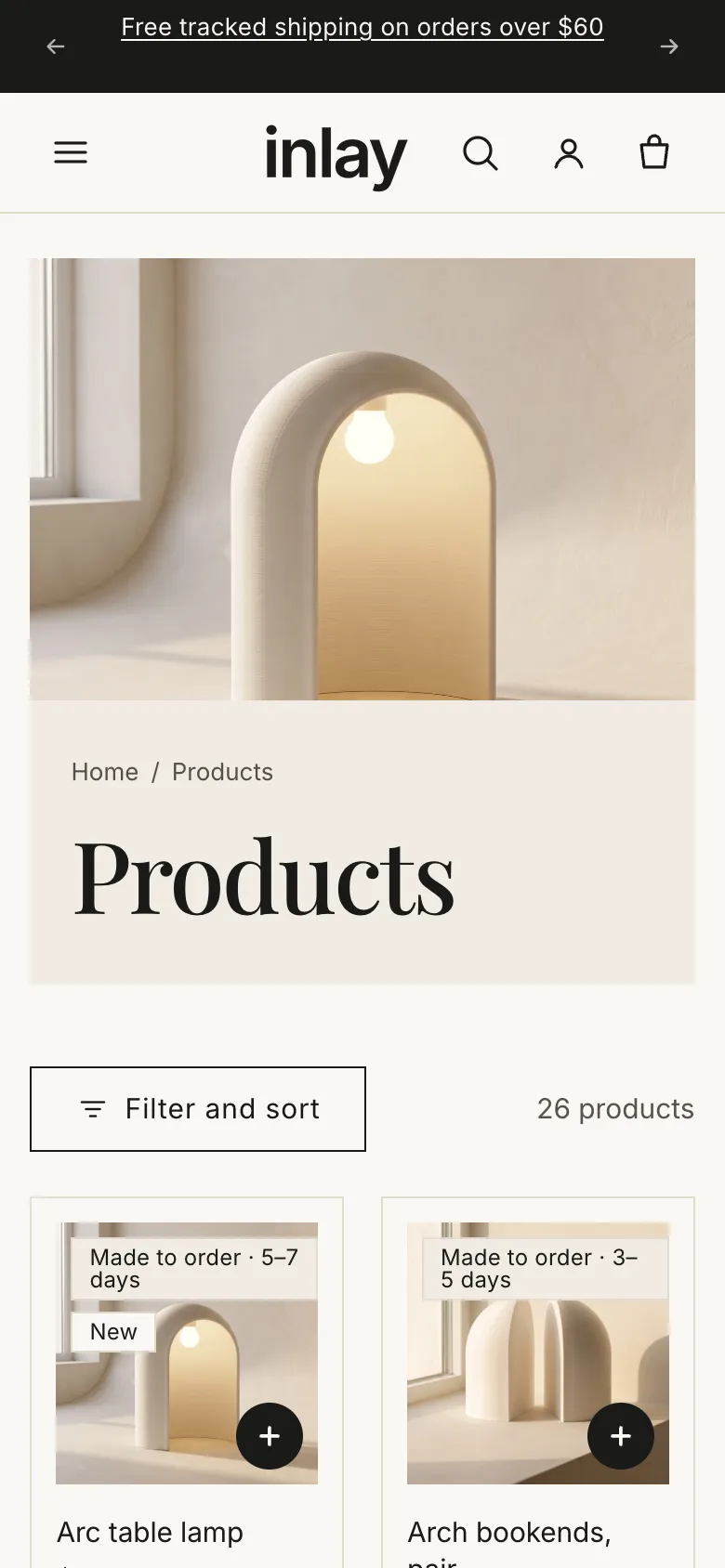
A collection page is built from two sections: the Collection banner and Collection.
Collection banner
Section titled “Collection banner”| Setting | Notes |
|---|---|
| Color scheme | |
| Layout | Text only, Split (text beside image), Overlay (text on image). Collections without an image always show the text only. |
| Width | Inset or Full width. |
| Media position / Media width on desktop | Split layout. |
| Height | Small / Medium / Large. |
| Overlay opacity | Overlay layout. |
| Use first product image | Shown when the collection has no image of its own. |
| Heading size | Medium to Huge. |
| Show collection description | |
| Show product count | |
| Show breadcrumb | |
| Vertical / Horizontal / Text alignment | Where the text sits, and how it lines up. |
The collection image and description come from the collection in the admin, so one banner section styles every collection.
Collection
Section titled “Collection”| Setting | Notes |
|---|---|
| Products per page | 8–36. |
| Products per row on desktop | 2–5. |
| Products per row on mobile | 1 or 2. |
| Enable filtering | |
| Enable sorting | |
| Filter layout on desktop | Vertical (sidebar), Horizontal (above products) or Drawer. Phones and tablets always use the drawer. |
Results are paginated, not infinite-scrolled, so a customer can share or bookmark page three.
Where the filters come from
Section titled “Where the filters come from”Filters are Shopify’s own, from the free Search & Discovery app: install it, open Filters, and add the filters you want (availability, price, product type, options, metafields). The theme then draws whatever you configured — there is nothing to set up in the theme itself.
With no filters configured, Enable filtering has nothing to show and the bar shows sorting only. This is the single most common “the theme is missing filters” question; see the FAQ.
Search
Section titled “Search”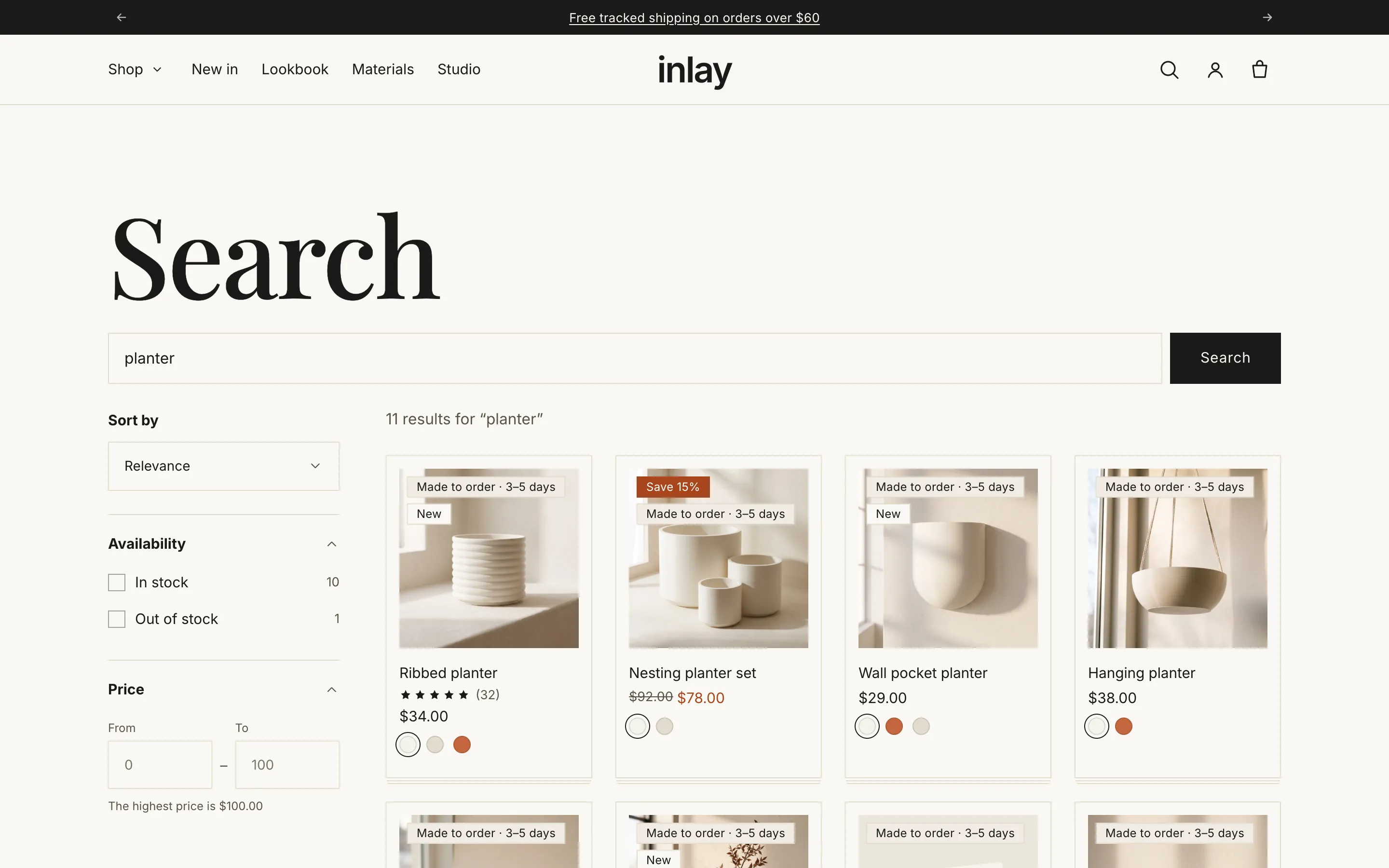
The search results page uses the same settings as the collection page: Results per page, products per row, filtering and sorting, filter layout.
A search returns products, pages and articles — someone looking for your shipping times or a care guide finds them here too. Products are drawn as cards in the grid; pages and articles follow as plain result rows.
Shopify only offers filters and sort options for a product-only search, so the moment a customer filters or sorts, the results narrow to products — and the filter panel only appears when there is something to filter. That is why the panel can be absent on the first page of results and present after a filter is applied.
Predictive search lives in the header’s search drawer and needs no setup: as the customer types it returns matching products, suggested searches, and your pages and articles, plus the Quick links menu before they type anything.
Blog and articles
Section titled “Blog and articles”Blog posts (the blog page): Articles per page 6–24, Show featured image, Show date, Show author, Show excerpt.
Blog post (the article page): Show featured image, Show date, Show author, Image shape.
Articles show their tags, and a comment form when comments are enabled for the blog in the admin.
For a blog teaser on the home page, use the Blog posts section — see Home page sections.
Other templates
Section titled “Other templates”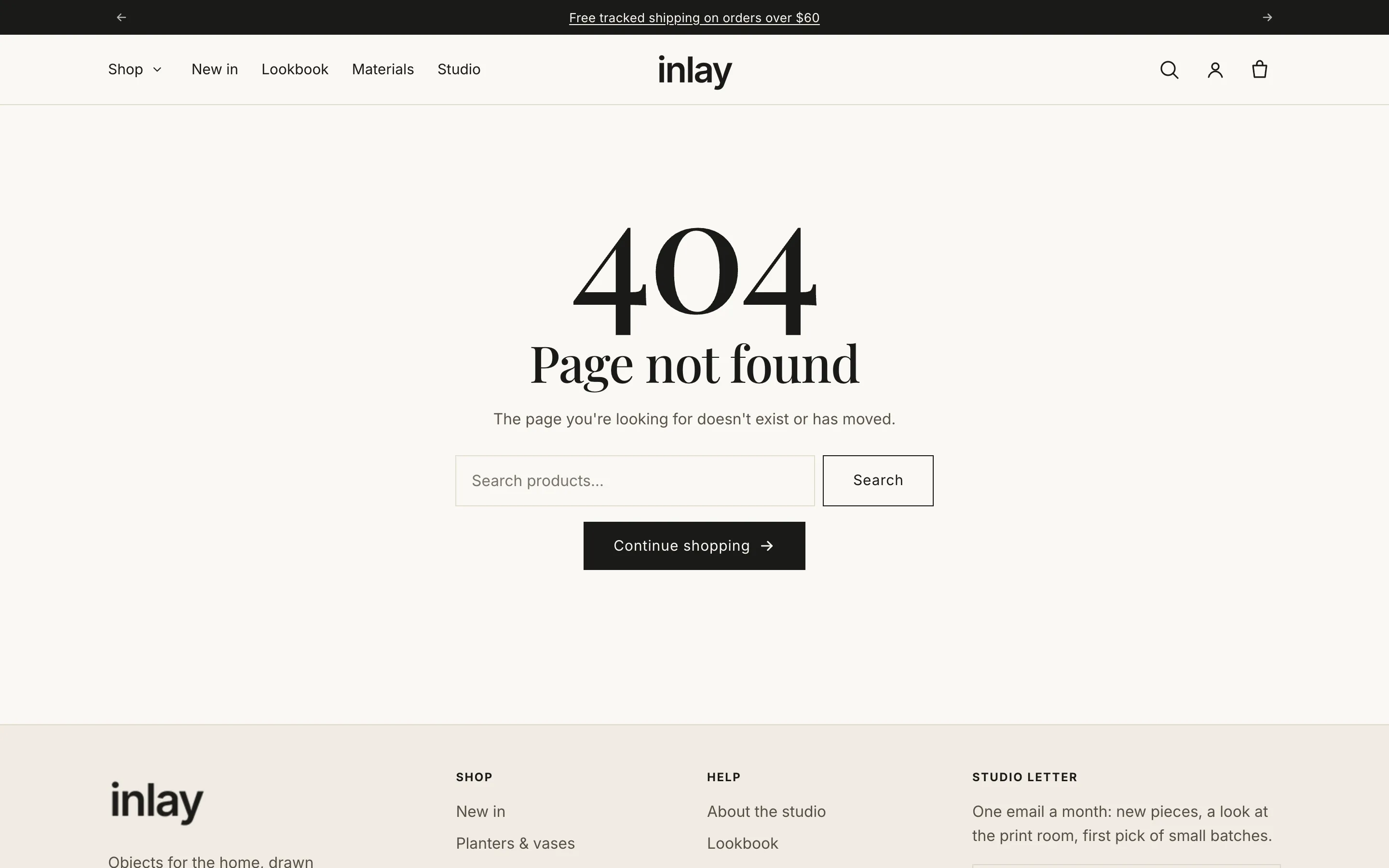
| Template | Notes |
|---|---|
| Page | Your page content, nothing else. Add sections above or below it for anything more. |
Contact page (page.contact) |
The page title and content, then a contact form. One setting: Show page title. Assign this template to your contact page in the admin. For a contact form anywhere else, add the Contact form section. |
| 404 | Show product search, Button link (defaults to all products). Worth checking that your 404 offers a way back into the catalogue. |
Collections list page (/collections) |
Heading, Sort collections (Alphabetically A–Z / Product count high to low / low to high), Collections per row on desktop 2–5. |
| Cart | See Cart. |
| Password | The page shown while the store is password-protected. |
| Gift card | The gift card a customer receives, with a QR code for in-store use and an Add to Apple Wallet button. |
| Customer account templates | Login, register, account, addresses, order, activate account, reset password. They follow your colour schemes, button and field settings with nothing to configure. The order page has two settings of its own: Show order progress (Ordered → In production or Being prepared → Shipped, with the expected dispatch date from Theme settings → Production) and Show status on each line (shipped with its tracking link, or when it is expected to ship). |
© 2026 Bevel · Shopify is a trademark of Shopify Inc.; Bevel is an independent theme studio.