3D spotlight
A section that puts one product’s 3D model on the page, turning slowly, with numbered points of interest you place on the model itself — and a “View in your space” button on phones that support augmented reality.
It needs one thing: a product with a 3D model. The first half of this page is how to get one into Shopify.
Uploading a 3D model to Shopify
Section titled “Uploading a 3D model to Shopify”3D models are ordinary product media in Shopify, next to the photographs and videos.
Format. GLB (recommended) or USDZ. Maximum file size 500 MB, but see the note on weight
below — the number you should aim for is a few megabytes. Shopify converts the model so both
.GLB and .USDZ versions exist, which is what makes augmented reality work on both Android and
iOS.
Steps
- In the Shopify admin, open Products and the product you want.
- Scroll to the Media card.
- Click Add media (or drag the file onto the card) and choose your
.glbfile. - Wait for processing — a 3D model takes longer than an image, and the thumbnail appears with a small cube marker when it is done.
- Drag the media into the order you want. The 3D spotlight section always uses the product’s first 3D model, so if a product has two, put the one you want first.
You can check what is uploaded under Content → Files, filtering by Used in → Product media.
Where to get a GLB. Export one from the software you modelled in — Blender, Fusion 360, Onshape, Rhino and the rest all export glTF/GLB, directly or through a free add-on. If the piece was never modelled (it was scanned, or it is ceramic), there is no model to export: use the Featured product section or a video instead.
Weight. A model’s file size is the one thing that can undo the theme’s performance work. Aim for under 5 MB:
- decimate the mesh — a product viewer does not need a million triangles;
- one material, one texture set, textures at 1024 or 2048 px, not 4096;
- no interior geometry the customer will never see;
- export with Draco compression if your exporter offers it.
Shopify automatically optimizes files over 15 MB, but an optimized 40 MB model is still a 40 MB model’s worth of detail you did not need.
Scale and orientation. Export in real-world scale with the model standing the way the object stands, and with its origin at its centre. The section’s points of interest are placed as a percentage of the model’s own size, so scale does not have to match any particular unit — but a model lying on its side will spin on its side.
Adding the section
Section titled “Adding the section”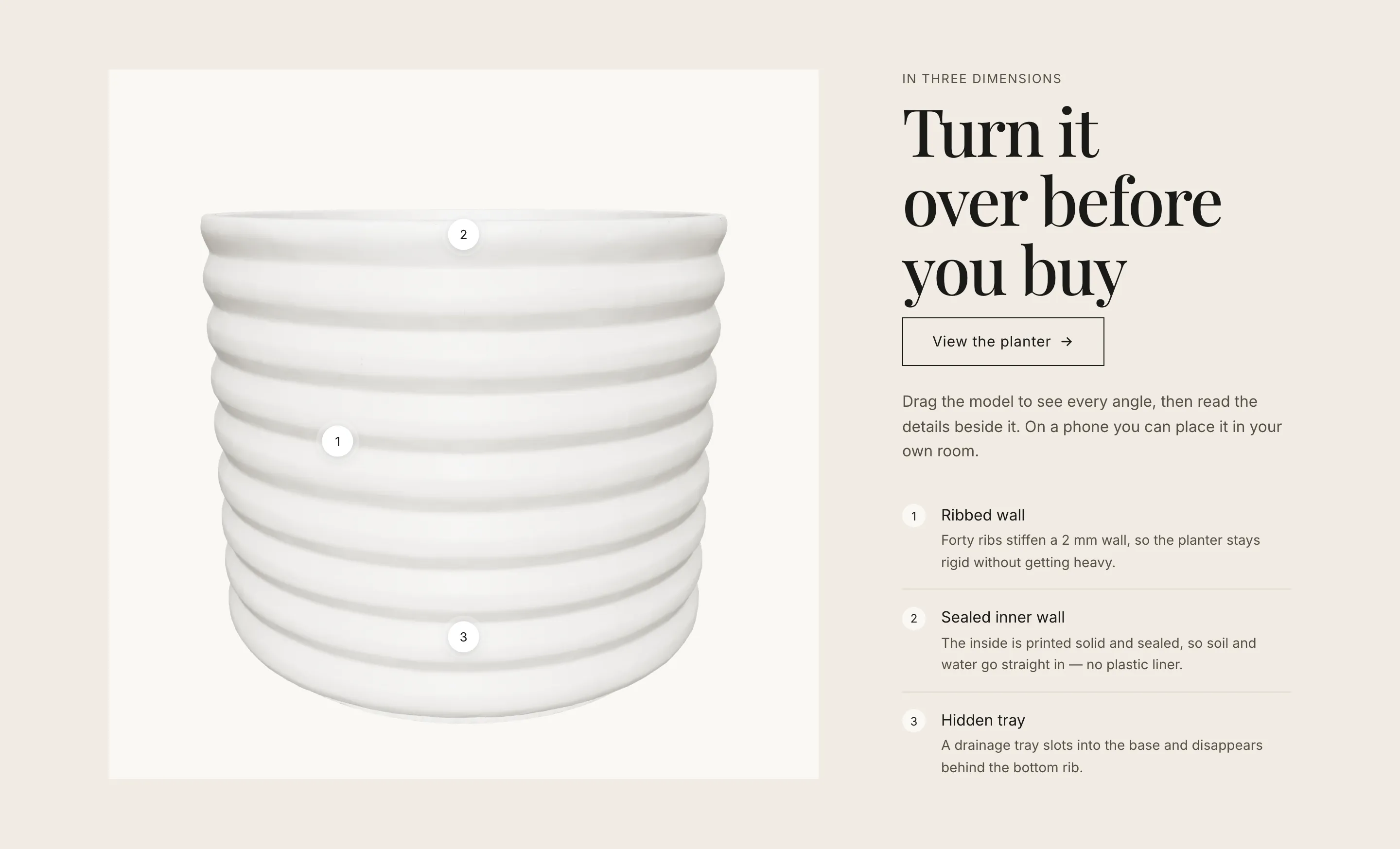
Add section → 3D spotlight. Then:
| Setting | Notes |
|---|---|
| Color scheme | |
| Product | The product whose first 3D model is shown. Without a model, the section appears only in the theme editor, with a note — your storefront never shows an empty 3D spotlight. |
| Subheading, Heading, Text | |
| Link label / Link / Link style | Usually a link to the product. |
| Setting | Notes |
|---|---|
| Stage shape | Original / Portrait 4:5 / Square / Landscape 4:3. |
| Stage position on desktop | Left or Right. |
| Stage width on desktop | Small 40% / Medium 50% / Large 60%. |
| Load the 3D viewer | When the section is reached — the stage is a still image until the visitor scrolls to it. When the visitor asks for it — the stage stays an image until the 3D button is pressed. |
| Turn the model slowly | Stops while a visitor is turning it, and never runs for visitors who ask for reduced motion. |
| Show “View in your space” on phones | The augmented reality button. |
On Load the 3D viewer. Nothing 3D — neither Shopify’s viewer library nor your GLB file — is loaded when the page loads. The stage is the product’s own photograph until one of the two triggers fires. On a home page, When the section is reached is right: a visitor who never scrolls that far never downloads a byte of it. Choose When the visitor asks for it if the section sits high on the page, or if your model is large.
Points of interest
Section titled “Points of interest”Each is a block. Add one per detail worth naming: a wall thickness, a hidden channel, a removable lid.
| Setting | Notes |
|---|---|
| Label | Short — it is the marker’s name and the row’s title. |
| Text | One or two sentences. |
| Left / right | −100% to 100% |
| Down / up | −100% to 100% |
| Back / front | −100% to 100%, default 100% (the front face) |
The three positions are a share of the model’s own size, measured from its centre, so the same numbers work for a keychain and for a vase. Drag a slider and watch the marker move in the preview — that is faster than calculating.
The markers are anchored in the model’s 3D space, so they travel with it as it turns: a marker on the back of the object goes behind the object. The text sits in a numbered list beside the stage, and marker and row highlight each other, so the section is usable with a keyboard and readable with a screen reader.
Up to six points. Three is usually the right number.
On the product page
Section titled “On the product page”Nothing extra to set up: a 3D model appears in the product gallery automatically, with its own rotate controls and the AR button. The product page’s gallery settings Show “View in your space” (AR) button and Start on the 3D model control it.
Troubleshooting
Section titled “Troubleshooting”The section does not appear on my store, only in the editor. The chosen product has no 3D model. That is the designed behaviour — see FAQ.
The model is sideways or tiny. It was exported that way. Fix it in your 3D software and re-upload; the theme does not rotate or rescale models.
The markers sit in the wrong place. They are relative to the model’s bounding box. If you re-exported the model with different geometry or a different origin, the numbers shift — drag them again.
It takes a moment before the model appears. Expected: that is the library and the file loading at the moment the section is reached. A lighter GLB shortens it.
© 2026 Bevel · Shopify is a trademark of Shopify Inc.; Bevel is an independent theme studio.